RED TEAM

Attacking Kiosk Devices: Red Team Research
attacking-kiosk-devices-zerone-security

Introduction

Determining the attack surface before attack is the first and the most important step of a security test. So, in this blog we are going to talk about attacking Kiosk devices and how to secure them.
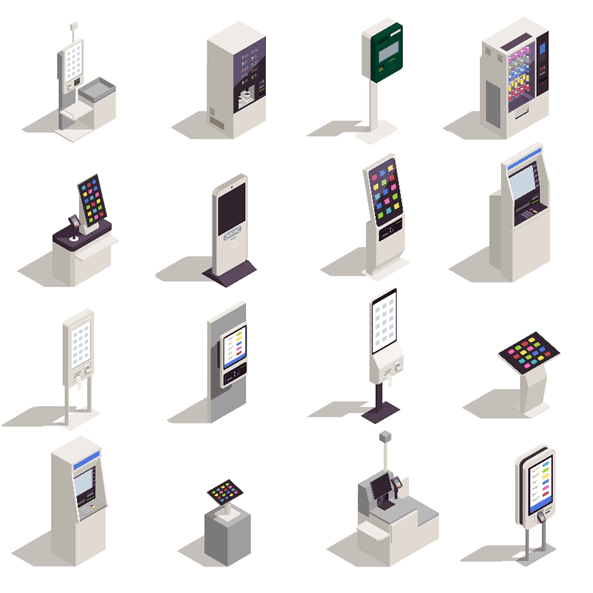
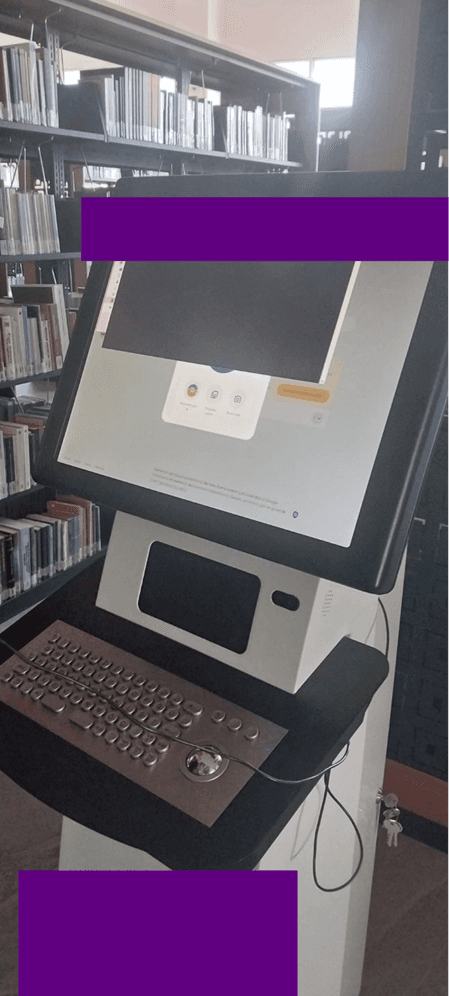
              A Kiosk is a digital display to help users/customers perform limited actions that change in case of what the purpose of the business is. But what if we can break those limits?


Attacking Kiosk Devices


Limits


              Kiosk devices run with special commands and software to prevent users interacting with things they aren’t supposed to play with. But if you are a penetration tester conducting a test, this means you have to bypass the restrictions in order to do your thing.

These are some of the “restrictions” on Kiosk devices:

1.      Whitelisting system commands: Putting only the commands that are needed according to the purpose of the device on a whitelist, blocks the attacker to perform different actions.

2.      Blocking Multi-Window Mode: If you can not manage to open a different window, this means that only the present windows is going to work. So, even the attacker is able to execute a command, it would be a bit more difficult to continue the attack.

3.      Opening Web Browsers in Kiosk Mode: Nearly every browser has a “--kiosk” option that you can specify before running it. This flag prevents opening the url section and windows taskbar etc.

4.      Security Softwares: Programs like antiviruses and EDR’s block malicious software and commands before even getting executed.

Now, let’s get to our subtopic: how to bypass?

Breaking the Limits


            Explaining something technical is better with sticking to real life experiences so let’s break down some of those technics:

Disconnect It

If the Kiosk is running based on a web browser, unplugging the ethernet cable will show you this page after reloading the page using the F5 or Ctrl+R:

Clicking “Running Windows Network Diagnostics” will open this page:
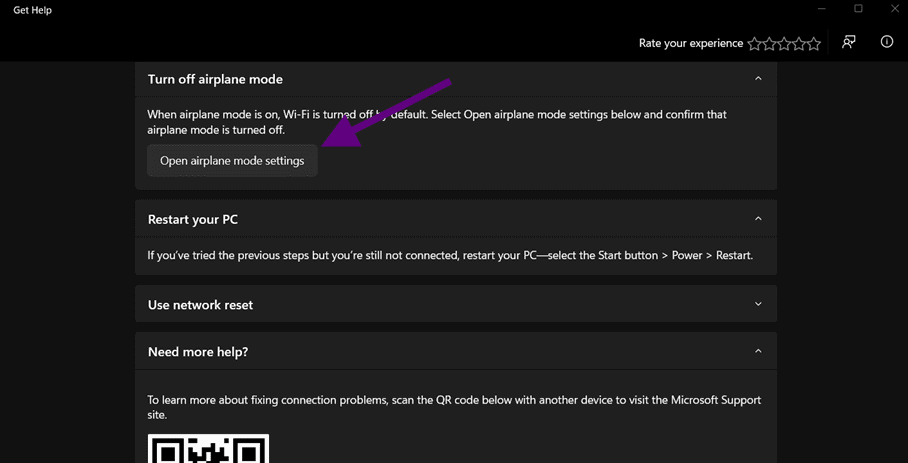

After opening airplane mode settings, you can lead to Windows Security and managing to disable the service.
But opening a command line is one of the main goals here, it is possible to open one from here:
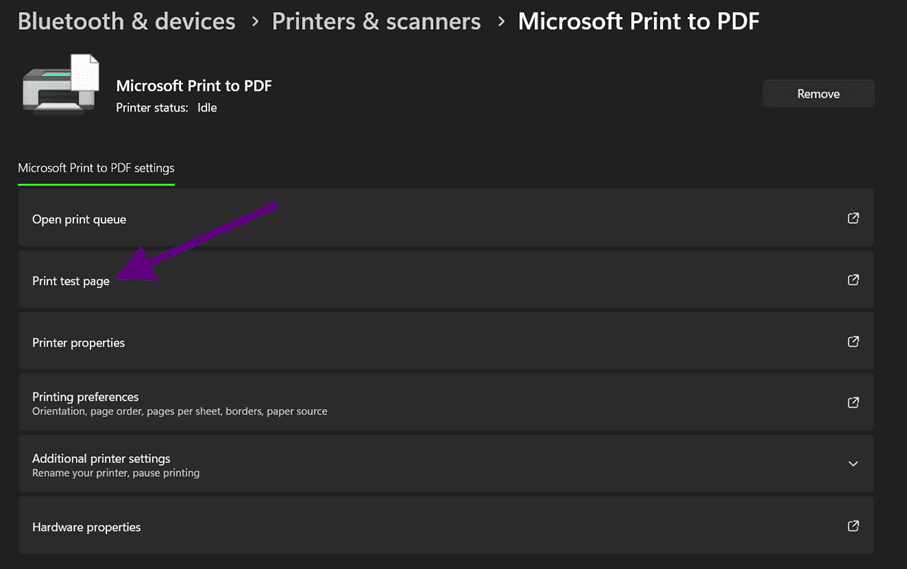
After clicking “Print test page” it’ll open the file explorer:
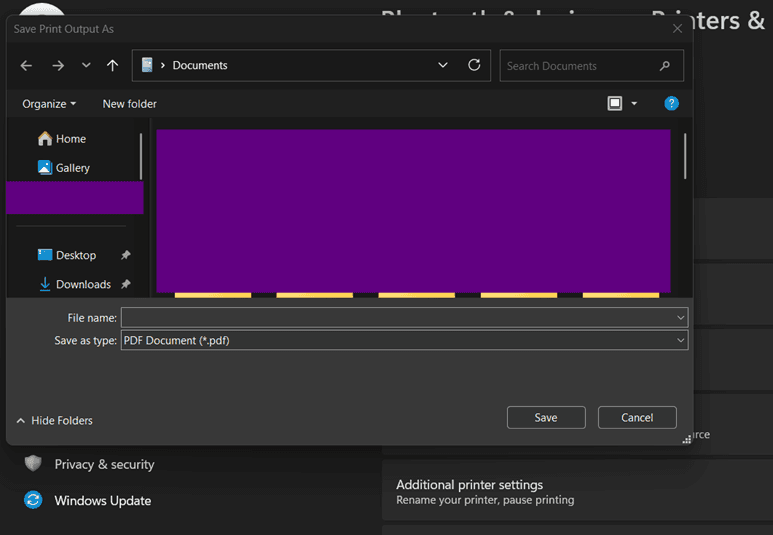

But what if opening the command line is disabled by the system?

The system HAS to be able to open a web browser in this scenario. So, first we must copy cmd.exe from “system32” to the file location of the current browser’s executable file. Then we have to rename the original executable name to a different file name. Now we can name cmd.exe to chrome.exe. This will trick windows as it opens the browser because it’ll check only the filename.
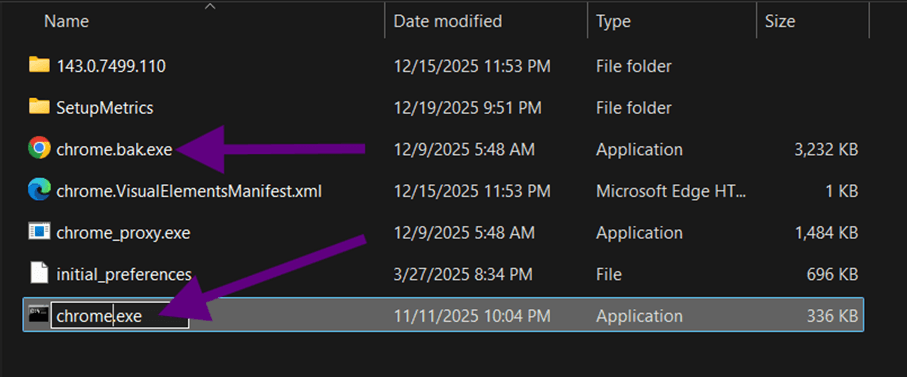
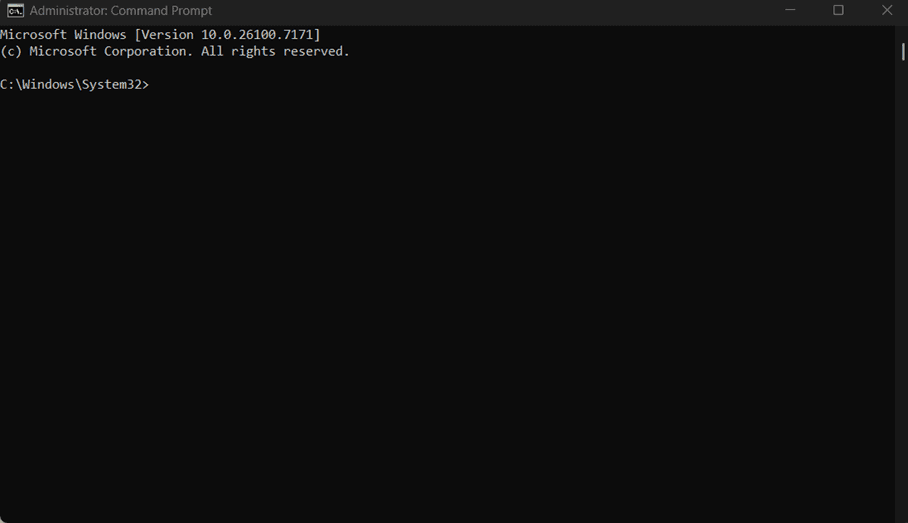
Now we have to open it as “administrator” so press “Shift + F10” to right click it after highlighting it using the arrow keys or the TAB keys. After UAC appears use the “ALT + Y” combination to allow it open as administrator.
A screenshot of a computer

AI-generated content may be incorrect.


If you are lucky enough, you’ll see a “privacy settings” option on the internet error page. Try to navigate to something that you can download. After the download is finished, you can also open file explorer and perform the steps above.

Blind Actions

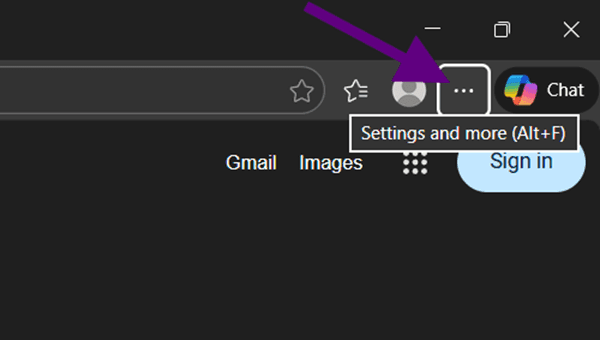
If none of these works, press only the TAB key but the key point here is counting how many times you pressed it. Every time you press you’ll go to another section on the browser, but you won’t be able to see it because of the Kiosk window mode.

A screenshot of a computer

AI-generated content may be incorrect.

We see that there is also a shortcut to this. It can differ from browser to browser. So, googling it will be helpful. Press SPACE here and you’ll see more options.
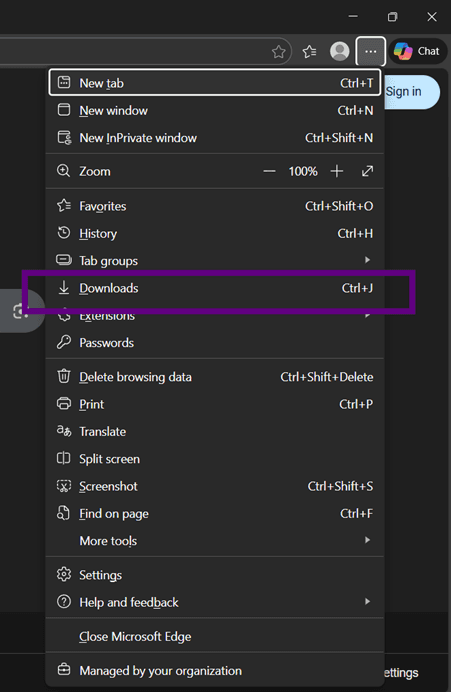
There is a shortcut for everything, but an attacker should think for the worst-case scenario.
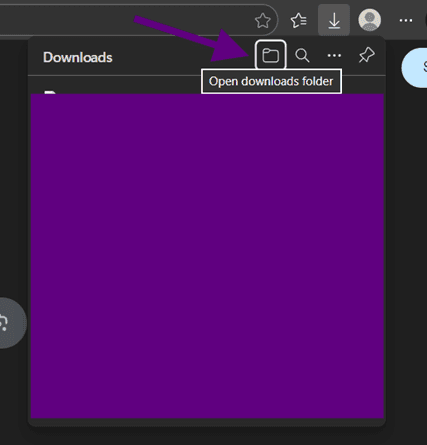
By pressing SPACE, we managed to open the file explorer again.

This isn’t the worst-case scenario yet, what if we can’t use a keyboard? What should we do? Let’s dig deeper with real life examples:

On all these scenarios we used keystrokes but how to manage to do it? They wouldn’t give us keyboards, right?

BadUSB

BadUSB is an USB that can act like an actual keyboard. It has its own syntax to execute the keystrokes on the victim device. You can build one with an “esp32” or simply with your own phone using a USB cable etc. On Kali NetHunter (Kali mobile), the “Duckhunter HID” section converts USB Rubber Ducky scripts into NetHunter HID format. Or you can do it with the stone age method and use an actual keyboard.

After Breaking the Limits

Opening a command line isn’t the end.  An attacker needs impact. Here are some things that I do:

First, I determine in which network the Kiosk is. This step is important to create a supply chain and do lateral movements across all the devices in the network (Don’t forget it can affect every device in the building).

After detecting which network the kiosk device is in, get a list of every host in the network and do a quick port scan (The most common protocols in a network are SMB, RDP, SQL, HTTP).

The main thing here is getting the most information you can get from the Kiosk so you can use these on the other hosts. What do I mean with “information”? For an example getting credentials.

Mimikatz

Mimikatz is a tool designed to exploit windows vulnerabilities. It also makes it possible to dump the credentials stored in the system. I use these credentials to hop on other machines.

We all know that we can not execute mimikatz as we want on a system. If it has an antivirus, it is easy, but EDR’s detect it immediately. But this is a topic of another blog…

Conclusion

There are so many attack vectors that an attacker can use. One of these are Kiosks. Breaking the security limits is not very easy every time. But this doesn’t mean we can not manage to bypass it. You just have to play with the screen and find a way to break it. It is nearly like playing an escape puzzle game.
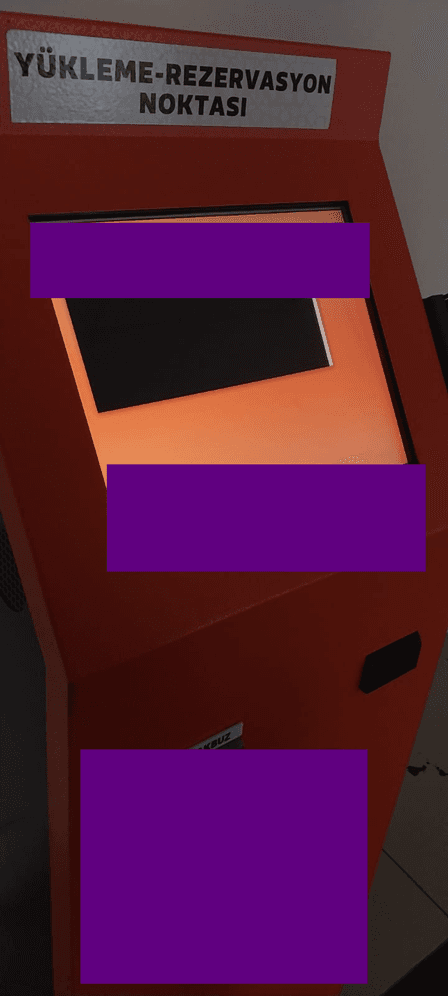


 Author: Serdar Çatal


Introduction

Determining the attack surface before attack is the first and the most important step of a security test. So, in this blog we are going to talk about attacking Kiosk devices and how to secure them.

              A Kiosk is a digital display to help users/customers perform limited actions that change in case of what the purpose of the business is. But what if we can break those limits?


Attacking Kiosk Devices


Limits


              Kiosk devices run with special commands and software to prevent users interacting with things they aren’t supposed to play with. But if you are a penetration tester conducting a test, this means you have to bypass the restrictions in order to do your thing.

These are some of the “restrictions” on Kiosk devices:

1.      Whitelisting system commands: Putting only the commands that are needed according to the purpose of the device on a whitelist, blocks the attacker to perform different actions.

2.      Blocking Multi-Window Mode: If you can not manage to open a different window, this means that only the present windows is going to work. So, even the attacker is able to execute a command, it would be a bit more difficult to continue the attack.

3.      Opening Web Browsers in Kiosk Mode: Nearly every browser has a “--kiosk” option that you can specify before running it. This flag prevents opening the url section and windows taskbar etc.

4.      Security Softwares: Programs like antiviruses and EDR’s block malicious software and commands before even getting executed.

Now, let’s get to our subtopic: how to bypass?

Breaking the Limits


            Explaining something technical is better with sticking to real life experiences so let’s break down some of those technics:

Disconnect It

If the Kiosk is running based on a web browser, unplugging the ethernet cable will show you this page after reloading the page using the F5 or Ctrl+R:

Clicking “Running Windows Network Diagnostics” will open this page:


After opening airplane mode settings, you can lead to Windows Security and managing to disable the service.
But opening a command line is one of the main goals here, it is possible to open one from here:

After clicking “Print test page” it’ll open the file explorer:


But what if opening the command line is disabled by the system?

The system HAS to be able to open a web browser in this scenario. So, first we must copy cmd.exe from “system32” to the file location of the current browser’s executable file. Then we have to rename the original executable name to a different file name. Now we can name cmd.exe to chrome.exe. This will trick windows as it opens the browser because it’ll check only the filename.

Now we have to open it as “administrator” so press “Shift + F10” to right click it after highlighting it using the arrow keys or the TAB keys. After UAC appears use the “ALT + Y” combination to allow it open as administrator.

A screenshot of a computer

AI-generated content may be incorrect.


If you are lucky enough, you’ll see a “privacy settings” option on the internet error page. Try to navigate to something that you can download. After the download is finished, you can also open file explorer and perform the steps above.

Blind Actions

If none of these works, press only the TAB key but the key point here is counting how many times you pressed it. Every time you press you’ll go to another section on the browser, but you won’t be able to see it because of the Kiosk window mode.


A screenshot of a computer

AI-generated content may be incorrect.

We see that there is also a shortcut to this. It can differ from browser to browser. So, googling it will be helpful. Press SPACE here and you’ll see more options.

There is a shortcut for everything, but an attacker should think for the worst-case scenario.

By pressing SPACE, we managed to open the file explorer again.

This isn’t the worst-case scenario yet, what if we can’t use a keyboard? What should we do? Let’s dig deeper with real life examples:

On all these scenarios we used keystrokes but how to manage to do it? They wouldn’t give us keyboards, right?

BadUSB

BadUSB is an USB that can act like an actual keyboard. It has its own syntax to execute the keystrokes on the victim device. You can build one with an “esp32” or simply with your own phone using a USB cable etc. On Kali NetHunter (Kali mobile), the “Duckhunter HID” section converts USB Rubber Ducky scripts into NetHunter HID format. Or you can do it with the stone age method and use an actual keyboard.

After Breaking the Limits

Opening a command line isn’t the end.  An attacker needs impact. Here are some things that I do:

First, I determine in which network the Kiosk is. This step is important to create a supply chain and do lateral movements across all the devices in the network (Don’t forget it can affect every device in the building).

After detecting which network the kiosk device is in, get a list of every host in the network and do a quick port scan (The most common protocols in a network are SMB, RDP, SQL, HTTP).

The main thing here is getting the most information you can get from the Kiosk so you can use these on the other hosts. What do I mean with “information”? For an example getting credentials.

Mimikatz

Mimikatz is a tool designed to exploit windows vulnerabilities. It also makes it possible to dump the credentials stored in the system. I use these credentials to hop on other machines.

We all know that we can not execute mimikatz as we want on a system. If it has an antivirus, it is easy, but EDR’s detect it immediately. But this is a topic of another blog…

Conclusion

There are so many attack vectors that an attacker can use. One of these are Kiosks. Breaking the security limits is not very easy every time. But this doesn’t mean we can not manage to bypass it. You just have to play with the screen and find a way to break it. It is nearly like playing an escape puzzle game.


 Author: Serdar Çatal


zerone

Zero Trust, One Security.


© 2025 Zerone Security, Inc.

Terms of service

Privacy policy

zerone

Zero Trust, One Security.


© 2025 Zerone Security, Inc.

Terms of service

Privacy policy

zerone

Zero Trust, One Security.


© 2025 Zerone Security, Inc.

Terms of service

Privacy policy

zerone

Zero Trust, One Security.


© 2025 Zerone Security, Inc.

Terms of service

Privacy policy